
Amazon has started asking KDP authors to prove who they are with a photo of a passport or driver’s license, and until you do it, KDP can hold back your publishing features. Scammers know this, so the safe way is to do it only from inside your own KDP account, never from a link someone sends you.
This week, sign in to KDP yourself, look for the verification banner, check that your name and country match your ID, and turn on two-step verification for your Amazon account.
What KDP says
This comes from three KDP help pages, all checked 19 October 2026: Verify your identity, Taking photos of your ID and Account security and avoiding scams. The KDP Help Center home page also says identity verification “is rolling out to authors”.
- Where you will see it. When verification is needed, a banner saying “Identity verification required” appears at the top of the page after you sign in. If there is no banner, you do not need to do anything yet.
- What you need. A government ID such as a passport or driver’s license. Paper copies and digital IDs cannot be processed. You may also be asked for a selfie, which KDP says is not used for biometric identification.
- Names must match. The name and country in the Your Identity section of your account must match your ID.
- Do not leave it. If you do not finish in the time given, or do not pass, KDP may restrict your publishing features or close your account. If you reach the limit on tries, the section locks and you have to wait 72 hours.
- It is quick. KDP says checking usually takes about 30 seconds after you submit.
The security page adds the other half. KDP does not ask for your Amazon password or full bank details anywhere except inside your Amazon, KDP or Author Central account. It will not ask for them by email, and it does not handle account questions on social media. KDP is free and does not sell editing or design.
Four steps for this week
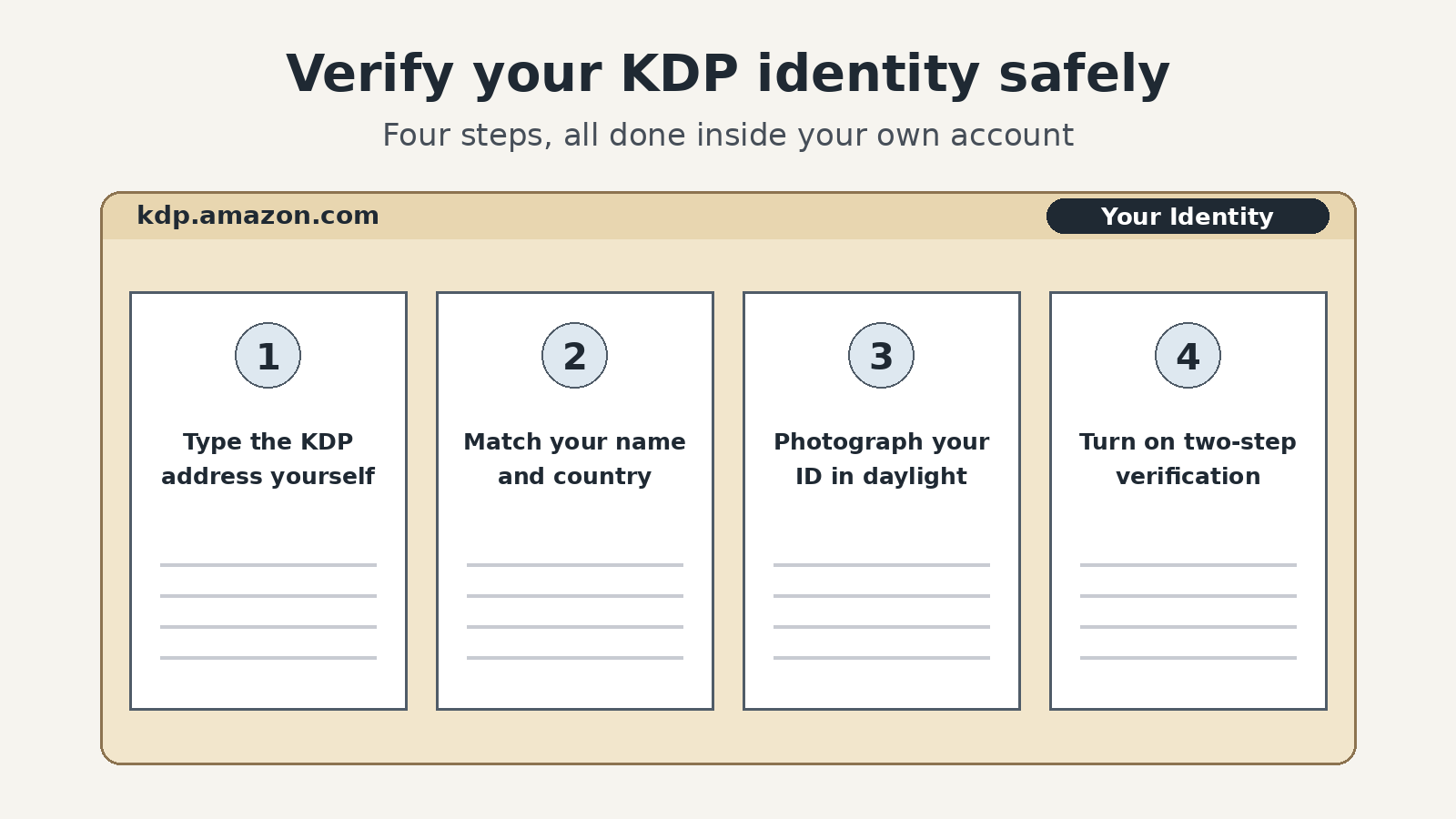
- Sign in yourself. Type kdp.amazon.com into your browser instead of clicking a link in an email or message. Look at the top of the page for the banner.
- Check Your Identity. Under Your Account, open Your Identity and compare your name and country with your passport or license. If they differ, fix them and save before you click Verify identity. Your tax and bank details are separate and should match your tax forms and bank account.
- Photograph your ID in daylight. A phone is easiest. If you start on a computer, choose Continue on another device and scan the code with your phone. Use daylight instead of a flash, hold the camera straight above the ID, show all four corners, and take the front and back as separate photos.
- Turn on two-step verification. This is a setting on your Amazon account that asks for a code from your phone when you sign in. While you are there, check that your sign-in email and phone number are correct.
Our 7 October note on keeping a rights folder is a good place to note the date you verified.
A small example
This one is made up. Margaret has two cozy mysteries on KDP. One morning an email says her account will close unless she clicks a link to verify. She does not click it. She types kdp.amazon.com, signs in, and sees no banner, so nothing is needed. She uses the Contact Us form on the KDP site to ask about the email. A few weeks later the banner does appear. Her account says Maggie, but her passport says Margaret, so she changes it, saves, and photographs her passport by the kitchen window. The check is done before her tea is cold.
If KDP needs your ID, the request will be waiting inside your account, so sign in yourself and do it there.